
How to Connect a Wireless CarPlay Adapter Step by Step

To connect a wireless CarPlay adapter, plug the adapter into your car’s wired CarPlay USB port, start the car, turn on Bluetooth and Wi-Fi on your iPhone, pair with the adapter’s Bluetooth name, allow CarPlay on your phone, and wait for the adapter to switch the connection to wireless CarPlay automatically.
How to connect wireless CarPlay adapter correctly starts with one key point: your car must already support wired Apple CarPlay. The adapter does not add CarPlay to a car that never had it. It only turns an existing wired CarPlay system into a wireless one.
I’m Brandon Walker, an automotive gear reviewer at Autostin. I test and review car products so you don’t have to guess what’s worth buying.
From dash cams and emergency tools to tire inflators, interior accessories, detailing gear, and DIY maintenance tools, I break it all down in plain language so you can make the right call before you spend a dime.
A wireless CarPlay adapter is one of those small car tech upgrades that can make daily driving feel cleaner and easier. No cable every time. No messy center console. No plugging and unplugging on short trips.
What Is a Wireless CarPlay Adapter?
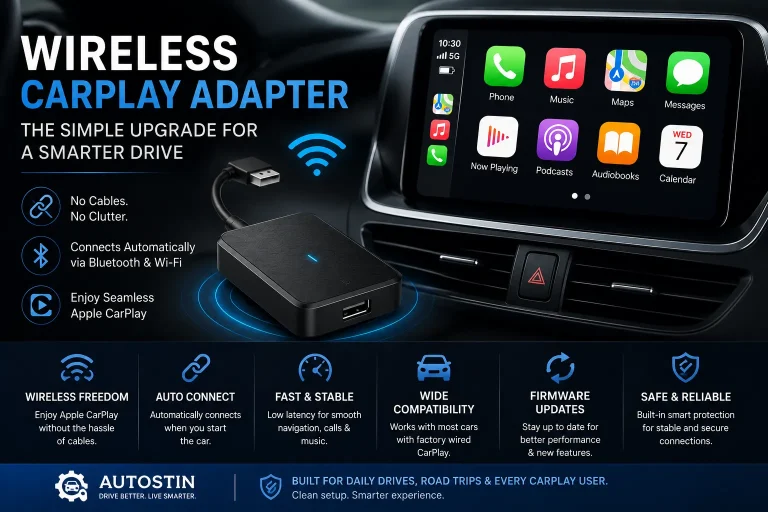
A wireless CarPlay adapter is a small device that plugs into your car’s USB port and lets your iPhone connect to Apple CarPlay without a cable.
Most adapters are made for cars that already have wired Apple CarPlay from the factory or from an aftermarket head unit.
The adapter works as a bridge between your iPhone and the car’s infotainment system.
Your car thinks the adapter is a wired CarPlay device. Your iPhone connects to the adapter wirelessly using Bluetooth and Wi-Fi.
How a Wireless CarPlay Adapter Works
The setup sounds more complicated than it really is.
First, the adapter gets power from your car’s USB port. Then your iPhone pairs to the adapter through Bluetooth.
After the first Bluetooth handshake, the adapter usually switches the main connection to Wi-Fi. That Wi-Fi connection carries the CarPlay data between your phone and the adapter.
After the first setup, most adapters reconnect automatically when you start the car.
For more car tech upgrades like this, our car tech guide can help you compare useful electronics for everyday car owners.
How to Connect Wireless CarPlay Adapter Step by Step
Use this setup process for most wireless CarPlay adapters.
The exact screen names may change by adapter brand, iPhone model, and car system. But the basic steps are usually the same.
Turn on the car or accessory mode. Keep the vehicle parked while you set up the adapter.
Use the same USB port you normally use for wired Apple CarPlay. Some cars have more than one USB port, but only one may support CarPlay.
Give the adapter 20 to 60 seconds. Many adapters show a light or a startup screen on the car display.
Wireless CarPlay usually needs both Bluetooth and Wi-Fi. Do not turn Wi-Fi off just because the first pairing uses Bluetooth.
Open Bluetooth settings on your iPhone and choose the adapter name. It may look like AutoKit, SmartBox, CarPlayBox, or another name from the adapter manual.
If your iPhone asks to allow CarPlay, tap allow. Also allow CarPlay while the phone is locked if you want easy automatic startup.
The adapter may take a minute during the first setup. After that, CarPlay should appear on the car screen.
Why Wireless CarPlay Adapters Matter for Car Owners
A wireless CarPlay adapter can make your car feel more modern without replacing the whole infotainment system.
That matters if your car has wired CarPlay but you are tired of plugging in your iPhone every time you drive.
It is also useful for short trips. You can get maps, music, calls, and messages on the car screen without touching a cable.
If your center console already feels crowded, wireless CarPlay can also help keep the cabin cleaner. For other cabin upgrades, our interior accessories guide has practical picks for everyday car owners.
When I test wireless CarPlay adapters, the first setup usually takes the longest. After that, the best adapters reconnect within a short time after starting the car. The weak ones often fail during startup or take too long to load maps and music.
Pros and Cons of Wireless CarPlay Adapters
A wireless CarPlay adapter is convenient, but it is not perfect for every car owner.
- No cable needed for daily CarPlay use
- Makes older wired CarPlay cars feel newer
- Cleaner center console
- Easy setup in many compatible cars
- Usually reconnects automatically after first pairing
- May not work with every wired CarPlay system
- Startup can be slower than wired CarPlay
- Some adapters can lag during calls or maps
- Battery drain can be higher on your iPhone
- Cheap adapters may need resets or firmware updates
Wireless CarPlay Adapter Compatibility
The most important rule is simple: most wireless CarPlay adapters need wired Apple CarPlay already built into the car.
If your car only has Bluetooth audio, that is not enough. If your car only has Android Auto, that is not enough either unless the adapter clearly supports your exact setup.
You also need a working iPhone and a USB port that supports data, not just charging.
Will a Wireless CarPlay Adapter Work in Every Car?
No, a wireless CarPlay adapter will not work in every car.
It should work in many cars that already have wired CarPlay. But compatibility can still vary by vehicle model, infotainment software, USB port type, and adapter firmware.
Some adapters work better with certain car brands than others. Before buying, check the adapter’s compatibility list and recent owner reviews.
If your car does not already support wired Apple CarPlay, most wireless CarPlay adapters will not fix that. You may need an aftermarket CarPlay head unit instead.
How Much Does a Wireless CarPlay Adapter Cost?
Wireless CarPlay adapter prices vary by brand, chip quality, startup speed, firmware support, and connection stability.
Cheap adapters can work, but they may have more lag or random disconnects. Better adapters usually cost more but give a smoother daily experience.
Install Tips for Wireless CarPlay Adapter Setup
Most wireless CarPlay problems come from the wrong USB port, old phone connections, or weak adapter firmware.
These tips can save you a lot of frustration.
- Use the same USB port that works for wired CarPlay.
- Delete old Bluetooth pairings if the setup fails.
- Keep both Bluetooth and Wi-Fi turned on.
- Update your iPhone before setup if possible.
- Do not pair the adapter while driving.
- Check the adapter manual for firmware update steps.
- Use a short, quality USB cable if the adapter needs one.
Wireless CarPlay often uses Bluetooth only to start the connection. The main CarPlay data usually runs through Wi-Fi. That is why turning off Wi-Fi can break the connection.
Set up the wireless CarPlay adapter while parked. Do not pair devices, change settings, scan menus, or troubleshoot the adapter while driving.
Some cars keep the USB port powered for a short time after you turn the car off. If your adapter light stays on briefly, that does not always mean something is wrong.
Do’s and Don’ts When Connecting a Wireless CarPlay Adapter
These simple rules help avoid most setup problems.
- Do confirm your car has wired Apple CarPlay first.
- Do plug the adapter into the CarPlay USB port.
- Do keep Bluetooth and Wi-Fi turned on.
- Do allow CarPlay when your iPhone asks.
- Do wait a full minute during first setup.
- Do not use a charge-only USB port.
- Do not turn off Wi-Fi after Bluetooth pairing.
- Do not set it up while driving.
- Do not expect it to work in cars without CarPlay.
- Do not ignore firmware update instructions.
Before You Buy a Wireless CarPlay Adapter
Before buying, check your car and your daily needs.
The best wireless CarPlay adapter is not always the most expensive one. It is the one that works well with your car and reconnects reliably.
- Check that your car already supports wired Apple CarPlay.
- Confirm your USB port supports CarPlay data.
- Check if your car uses USB-A or USB-C.
- Read recent reviews from owners with your vehicle brand.
- Look for firmware update support.
- Check return policy in case compatibility fails.
- Decide if low lag matters for maps and calls.
If you are building a better road trip setup, our safety gear guide can help you prepare practical emergency gear to keep in your car.
Wireless CarPlay Adapter Setup Problems and Fixes
If the adapter does not connect the first time, do not panic. Most issues are easy to check.
Start with the simple things first. Use the correct USB port. Turn Bluetooth and Wi-Fi on. Forget old pairings. Restart your iPhone and car system.
| Problem | Likely Cause | Simple Fix |
|---|---|---|
| Adapter does not power on | Wrong USB port or weak cable | Use the wired CarPlay USB port |
| Bluetooth name does not show | Adapter still booting | Wait 60 seconds and restart setup |
| CarPlay does not launch | CarPlay not allowed on iPhone | Allow CarPlay in iPhone settings |
| Connection drops often | Firmware or signal issue | Update adapter firmware if available |
| Audio lag or delay | Adapter processing speed | Restart adapter or try a better unit |
Wireless CarPlay Adapter vs Wired CarPlay
Wireless CarPlay is convenient. Wired CarPlay is often faster and more stable.
For many car owners, the small delay is worth it because the cabin feels cleaner and daily startup is easier.
| Feature | Wireless CarPlay Adapter | Wired CarPlay |
|---|---|---|
| Daily convenience | Very good | Needs cable every time |
| Connection speed | Usually slower | Usually faster |
| Stability | Depends on adapter | Usually more stable |
| Phone charging | No charging unless using separate charger | Charges while connected |
| Best for | Short trips and clean cabin setup | Long trips and maximum reliability |
For official setup guidance, Apple’s CarPlay setup guide is a helpful source for iPhone users.
For general vehicle safety information in the United States, NHTSA is a trusted resource for car owners.
For practical vehicle ownership and maintenance advice, Edmunds car maintenance resources can also help.
Final Verdict: How to Connect Wireless CarPlay Adapter
- Your car must already support wired Apple CarPlay.
- Plug the adapter into the wired CarPlay USB port.
- Turn on Bluetooth and Wi-Fi on your iPhone.
- Pair with the adapter and allow CarPlay.
- After setup, most adapters reconnect automatically.
Connecting a wireless CarPlay adapter is simple when your car already has wired Apple CarPlay. Plug the adapter into the correct USB port, pair it through Bluetooth, allow CarPlay on your iPhone, and keep Wi-Fi turned on for the wireless connection. If setup fails, check compatibility, USB port type, old pairings, and firmware updates.
FAQ: How to Connect Wireless CarPlay Adapter
Plug the adapter into the wired CarPlay USB port, turn on Bluetooth and Wi-Fi, pair your iPhone with the adapter, then allow CarPlay when prompted.
No, most wireless CarPlay adapters only work in cars that already have wired Apple CarPlay.
The most common reasons are the wrong USB port, Bluetooth pairing issues, Wi-Fi turned off, old iPhone settings, or adapter compatibility problems.
Yes, wireless CarPlay usually uses Bluetooth for pairing and Wi-Fi for the main data connection.
Some adapters support Android Auto, but not all. Check the product listing and compatibility notes before buying.
Lag can come from adapter quality, weak wireless connection, old firmware, or the car’s infotainment system speed.
No, the adapter does not charge your iPhone wirelessly. You need a separate charger if you want charging while using wireless CarPlay.
Final Thoughts
So, how do you connect a wireless CarPlay adapter? Start with the right car, the right USB port, and a clean pairing process.
Make sure your car already has wired CarPlay. Plug the adapter into that same CarPlay USB port. Then pair your iPhone and allow CarPlay.
If it does not work right away, do not guess. Check the USB port, Bluetooth settings, Wi-Fi, old device pairings, and adapter firmware.
For most car owners, a good wireless CarPlay adapter is a simple upgrade that makes the cabin cleaner and daily drives easier.

2 Comments