How to Reset Wireless CarPlay Adapter Without Losing Settings

Unplug the adapter for 10–15 seconds to perform a soft reset that fixes most connection problems without losing saved settings. Only use a factory reset for resale or persistent failures, since it erases pairing and all custom preferences.
If your wireless CarPlay adapter keeps dropping the connection, freezing on “Connecting…,” or refusing to show up in your car’s infotainment system, this guide covers exactly how to reset wireless CarPlay adapter — and how to do it without wiping your saved settings. The good news: only the deepest reset level, the factory reset, erases your preferences. This walkthrough explains which reset matches your symptom, what each level preserves, and how to get back on the road in minutes.
- Soft reset first: Unplug-and-replug keeps every setting and fixes most connection drops or audio stutter.
- Hard reset only when needed: Clears pairing and cache but usually preserves firmware and stored preferences.
- Factory reset is the last resort: Wipes all data and pairing; required before resale or gifting.
- Back up before resetting: Use the companion app’s export option or screenshot each settings page in two minutes.
- Verify head unit and power: A weak USB port or an incompatible head unit defeats any reset.
The Short Answer: Yes, You Can Reset Without Losing Your Settings
Yes. A soft reset (unplug and replug) preserves every setting, a hard reset clears pairing and cache while keeping firmware and stored preferences, and only a factory reset wipes all user data. If you just need to fix a glitch, start with the soft reset and move up only if the problem persists.
| Reset Level | What It Preserves | What It Clears | Best For |
|---|---|---|---|
| Soft Reset | All settings and pairing | Nothing | Connection drops, audio stutter |
| Hard Reset | Firmware and stored preferences | Pairing and temporary cache | Adapter not detected by head unit |
| Factory Reset | Nothing | All user data, pairing, custom configuration | Resale, gifting, persistent failures |
What a Soft Reset, Hard Reset, and Factory Reset Each Preserve
A soft reset restarts the adapter without touching any stored preferences. A hard reset forgets paired phones and clears temporary cache, but usually leaves firmware and custom audio/video settings alone. A factory reset returns the adapter to its original out-of-the-box state: no pairing, no settings, no tuning.
Why the Order of Your Reset Attempts Matters
Resets escalate in what they erase, so skipping levels costs you time. Soft reset first — it fixes most daily glitches. If that fails, try a hard reset. Only when both fail, or when you’re selling or gifting the device, reach for the factory reset.
Know Which Reset You Actually Need Before You Touch Anything
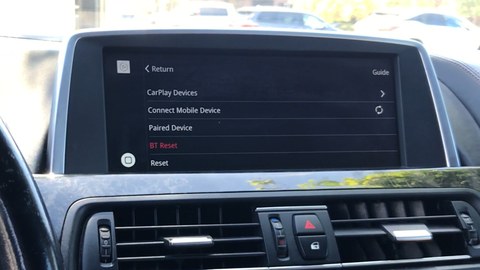
Match the symptom to the reset level so you don’t erase more than necessary.
Connection Drops and Audio Stutter Point to a Soft Reset
If CarPlay connects and then drops, or audio stutters during calls and navigation prompts, the adapter’s wireless stack is likely stuck. A soft reset clears that momentary glitch while keeping your audio codec, video resolution, and auto-connect preferences intact.
Adapter Not Detected by the Head Unit Points to a Hard Reset
When the head unit no longer sees the adapter at all, the cached handshake data may be corrupted. A hard reset clears it and forces a clean connection. If the adapter still isn’t detected afterward, suspect USB power or hardware rather than software.
Selling, Gifting, or Persistent Failures Point to a Factory Reset
Before resale or gifting, a factory reset protects your privacy. It’s also the last resort for failures that survive both softer resets — just know you’ll re-pair your phone and re-enter all preferences afterward.
What a Reset Will Never Fix: Dead Hardware, Bad USB Power, and Incompatible Head Units
No reset can revive failed internal components, compensate for a weak USB port, or make CarPlay work on a head unit that never supported it. If you’re new to these adapters, review what a wireless CarPlay adapter actually does inside your vehicle before deciding a reset is the right fix.
Before You Reset: Save Your Adapter’s Settings in Two Minutes
A quick backup protects you even if you only plan a soft reset. Two minutes now saves twenty later.
Use the Companion App’s Backup or Export Function
Most current adapters pair with a companion app that includes a backup, export, or cloud-sync option. Open the app, find the device settings page, and save a backup file. If your app offers this, store the file somewhere you can find it again.
Before any reset, screenshot every settings page in the companion app — adapter name, audio codec, video resolution, and auto-connect preferences. Even without a backup feature, screenshots make reconfiguration after a factory reset far easier.
Screenshot Your Adapter Name, Audio Codec, Video Resolution, and Auto-Connect Preferences
No export feature? Screenshots are your backup plan. Capture each settings page so you have a clear reference for the adapter name, codec (such as AAC or aptX), resolution choices, and whether auto-connect is on. That’s about a minute of work.
Check Your Firmware Version and Write It Down
Note the firmware version before resetting anything. If a recent iOS update preceded the problem, the adapter maker may have released a matching firmware fix — and updating beats resetting. You’ll want that version number when you check the support page.
Know Whether Your Settings Live in the App or on the Adapter Itself
Some settings are stored in the companion app profile; others live on the adapter’s internal memory. A factory reset wipes the adapter’s memory, while the app may retain a profile with the same preferences. Check the app’s help section to know which is which before you reset.
Soft Reset: The Quickest Way to Reboot Your Wireless CarPlay Adapter
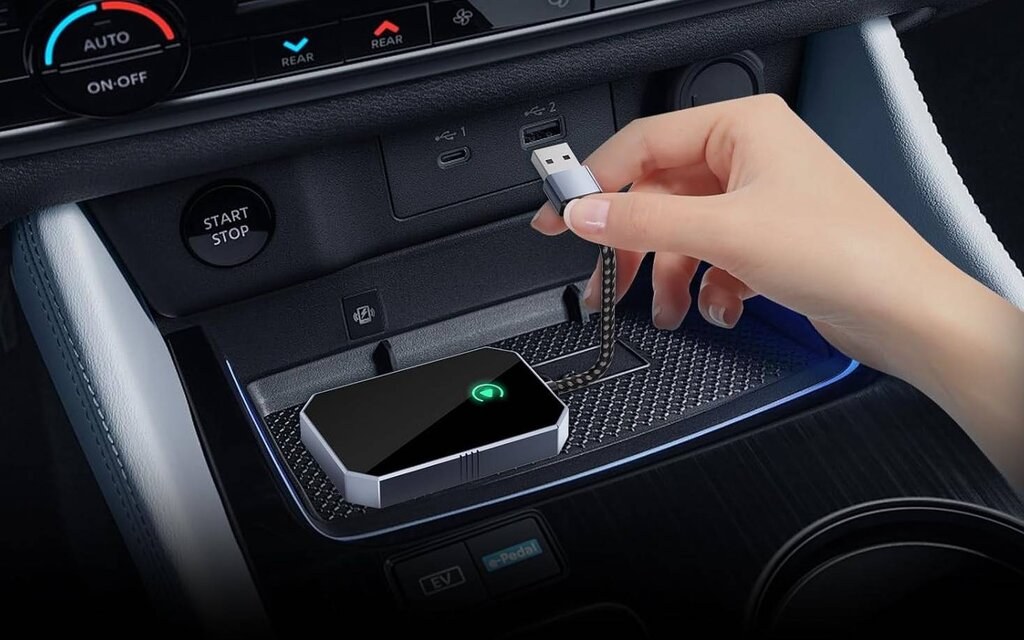
Try this first, because it’s fast and keeps everything you’ve configured.
Unplug-and-Replug Method That Keeps Every Setting Intact
Unplug the adapter from the USB port, wait 10 to 15 seconds, and plug it back in. The adapter reboots and reconnects using its stored pairing. No settings are lost and no re-pairing is needed.
Power-Cycling the Car and Waiting for the Adapter to Fully Shut Down
If unplugging alone doesn’t work, turn the car completely off and wait at least 30 seconds so the adapter fully powers down. Restart the car and let the adapter reconnect on its own. This clears deeper stuck states that a quick unplug might miss.
Button-Hold Soft Reset for Adapters With Physical Controls
Some adapters with a physical button reset by holding the button 5 to 10 seconds until the LED blinks. Hold times vary by brand, so check the manual or support page for the correct duration. If the adapter has no button, use the unplug method instead.
Why a Soft Reset Fixes Most Everyday Connection Issues
Wireless CarPlay adapters run a miniature computer with Bluetooth and Wi-Fi stacks that occasionally get stuck. A soft reset clears those stuck processes, renews the wireless handshake, and restores a stable connection without touching a single saved preference.
- Unplug and wait 10–15 seconds before plugging back in.
- Power-cycle the car when the adapter seems unresponsive.
- Factory-reset for a simple connection drop.
- Rapidly unplug and replug, which can leave the adapter half-initialized.
Hard Reset and Factory Reset: What They Erase and How to Perform Them
Beyond the soft reset, you’re erasing data, so know exactly what each level removes.
Hard Reset: Clears Pairing and Cache But Keeps Firmware and Stored Preferences
A hard reset wipes the pairing table and temporary cache — useful when the adapter is detected but refuses to connect cleanly. Firmware and your stored preferences usually survive, but you’ll need to re-pair your iPhone.
Factory Reset: Wipes All User Data, Pairing, and Custom Configurations
A factory reset returns the adapter to factory condition: every paired phone is removed, every custom setting erased, and the adapter appears as a brand-new device on next power-up. Reserve this for resale, gifting, or failures that survive a hard reset.
General Steps: Pinhole Button, App Command, or 10-Second Hold
Three methods are common: a pinhole reset button pressed with a paperclip, a reset command in the companion app, or a longer button hold — usually 10 seconds or more. Confirm your model’s method in the manual before pressing anything.
Privacy Warning: Factory Reset Removes Personal Data Before Resale or Return
Run a factory reset before selling, gifting, or returning any adapter. The device may store identifiers and connection history that should not pass to a new owner. Confirm the LED indicates the cleared state before passing it on.
Brand-by-Brand Reset Instructions for Popular Wireless CarPlay Adapters
Instructions vary, but common patterns cover most adapters on the US market.
Carlinkit and CPlay2Air: Reset Combinations and App-Based Options
Carlinkit and CPlay2Air adapters typically reset through the companion app or a button hold. Many Carlinkit models factory-reset by holding the side button about 10 seconds; the app offers a reset command on the device settings page. CPlay2Air behaves similarly, but button-hold durations differ by generation — confirm yours in the manual.
Ottocast: Pinhole Reset and Recovery Mode Steps
Ottocast adapters commonly use a pinhole reset button on the side. With the adapter powered, press and hold the pinhole with a paperclip for 5 to 10 seconds until the LED changes color. Note that some Ottocast models also enter firmware-recovery mode, so check the support page to make sure you’re in reset mode rather than update mode.
Teeran and Other Budget Adapters: Common Reset Patterns
Budget adapters such as Teeran often share hardware reference designs with mainstream brands, so their reset patterns are similar: a 10-second button hold or an unplug-replug cycle followed by re-pairing. Many budget units lack a companion app, which makes the physical button or plug cycle your only reset option.
OEM and Dealer-Installed Adapters: Why You Should Check the Owner’s Manual First
If the adapter was installed by a dealer or is an OEM accessory, do not rely on third-party instructions. OEM units sometimes reset through the vehicle’s infotainment menus rather than a physical button. Check the owner’s manual or dealer documentation before doing anything.
Reconnecting Your iPhone After a Factory Reset
A factory reset erases the adapter’s pairing memory, so your iPhone needs a clean start.
Forget the Adapter in iPhone Settings > Bluetooth Before Re-Pairing
Open Settings > Bluetooth, tap the “i” next to the adapter’s name, and choose Forget This Device. That clears stale pairing data on the phone side, preventing conflicts when the adapter starts broadcasting as a new device.
Re-Pairing Steps: Put the Adapter in Pairing Mode and Select It on Your Phone
Wait for the LED to blink quickly, which signals the adapter is ready to pair.
Open Settings > Bluetooth on your iPhone and find the adapter’s name in the device list.
Tap the adapter, confirm the pairing prompt, and let it hand off to CarPlay automatically.
If CarPlay doesn’t launch, restart the adapter and try again. For full walkthrough details, see our guide on how to connect a wireless CarPlay adapter.
Reconfigure the Companion App and Re-Enter Your Audio and Video Preferences
Open the companion app and repeat the initial setup flow, re-entering audio codec, video resolution, and auto-connect choices. If you saved a backup or screenshots before the reset, now is the time to use them.
Test With a Wired CarPlay Connection First to Rule Out Head Unit Issues
Plug your iPhone into the car’s USB port with an Apple-certified cable and confirm wired CarPlay works before assuming the adapter is at fault. If wired CarPlay also fails, the problem is the head unit, cable, or USB port — not the adapter. That one test can save you from a second reset cycle.
Post-Reset Troubleshooting: If the Adapter Still Won’t Connect
The reset worked but the connection didn’t. Work through these checks in order.
Verify Head Unit Compatibility: Model Year, Factory CarPlay Support, and Firmware Updates
Confirm your vehicle’s model year is on the adapter’s compatibility list and that the head unit supports CarPlay by wire. Also check for head unit firmware updates — automakers sometimes disrupt CarPlay handshakes with software changes.
Check USB Port Power Output and Cable Quality at the Adapter’s Mounting Point
Wireless CarPlay adapters draw noticeable current, and a USB port that barely charges a phone may not power the adapter reliably. Try another port if one is available, and inspect the cable between the port and adapter for damage. If you’re wondering about long-term behavior, our explainer on leaving a wireless CarPlay adapter plugged in covers the power-draw considerations.
Confirm iOS Version and Adapter Firmware Are Both Current
iOS updates sometimes break CarPlay handshakes, and adapter makers push firmware patches in response. Update your iPhone first, then check the adapter’s companion app or support page for a newer firmware version. If release notes mention your exact symptom, updating is the faster fix.
Safety and Legal Note: Only Perform Configuration and Pairing While Parked
Adjust settings, re-pair your phone, or navigate the companion app only while parked in a safe location. Doing so while driving is dangerous and may violate distracted-driving laws in your state.
When to Contact Support or File a Warranty Claim Instead of Resetting Again
If a soft reset, hard reset, and factory reset all fail — and you’ve verified power and compatibility — the adapter may be faulty. Contact the manufacturer with your model, firmware version, and a description of the symptom. If the unit is under warranty, a replacement may be faster than more reset attempts.
Firmware Update vs. Reset: Which One Actually Solves Your Problem
Resets restore a known-good state; firmware updates fix known bugs. Knowing which one you need prevents wasted effort.
Update Firmware When the Issue Is a Known Bug or Compatibility Regression
If the adapter worked before an iOS update and broke after, a firmware update is usually the correct move. Check the release notes for keywords like “CarPlay connectivity” or “iOS compatibility.” If a matching fix exists, update first and save the reset as a fallback.
How to Update Safely: Stable Power, Uninterrupted Process, and Correct File for Your Adapter
Always update with the adapter connected to a powered USB port, never unplug it mid-process, and download the file from the manufacturer’s official source. Most companion apps handle updates automatically and confirm when they’re complete. A dedicated guide to updating a wireless CarPlay adapter covers the safe process in more depth.
Risks of Updating: Bricking the Adapter and Losing Custom Tuning
Firmware updates carry risk. An interrupted update can leave the adapter nonfunctional — sometimes permanently — and certain updates reset custom tuning to defaults. Update only when the release notes address your specific problem, and keep those pre-reset backups nearby.
Ownership Cost and Value: When a Replacement Adapter Beats Another Reset
If you’ve owned the adapter for several years and it now requires constant resets, the time you’re spending may be worth more than a new unit. Newer adapters generally offer better iOS compatibility and faster handoffs. Before buying a replacement, however, verify the head unit is not the real source of the trouble.
- Best use case: Soft resets for everyday drops; factory reset only for resale or persistent failures.
- Main strength: Most problems resolve without erasing your saved settings.
- Main limitation: Factory reset forces full re-pairing and reconfiguration.
- Next verification step: Confirm head unit compatibility and current firmware before replacing the adapter.