Wireless CarPlay Keeps Disconnecting? Simple Fixes & Gear

Wireless CarPlay drops usually come from Wi-Fi or Bluetooth interference, weak USB power, outdated software, or phone settings. Start with free fixes like restarting, re-pairing, and updating before buying new gear.
If you have been asking why does wireless CarPlay keep disconnecting, the short answer is that wireless CarPlay depends on a stable Wi-Fi and Bluetooth link between your iPhone and your car’s infotainment system, so most dropouts come down to interference, weak power delivery, outdated software, or phone settings. The good news is that many disconnects are fixable in minutes without spending money, and the rest usually respond to a specific update, cable, or adapter change.
- Start free: Restart both devices, forget and re-pair CarPlay, and update all software before spending money.
- Power path matters: A dirty USB port, damaged cable, or weak adapter can cause random reboots and.
- Firmware updates fix bugs: Many disconnect issues are resolved by updating iOS, car infotainment software, or adapter firmware.
- Heat and placement: Keep the adapter ventilated and away from metal or sealed compartments to avoid overheating.
- Replace last: Buy a new adapter only after ruling out phone settings, updates, cables, and known.
Direct Answer: What to Know About Why Wireless CarPlay Keeps Disconnecting
Wireless CarPlay works in two stages. Bluetooth handles the initial handshake and phone calls, while Wi-Fi streams the heavy data like maps, music, and messages. If either radio link drops, the whole session can disconnect or refuse to reconnect until you restart the car.
In most cases, the cause is one of the following:
- Software glitches on the iPhone, the car’s infotainment system, or an aftermarket adapter
- Wi-Fi interference from crowded radio environments, other hotspots, or nearby electronics
- Unstable USB power that makes an adapter reboot mid-drive
- Phone settings such as VPN profiles, Low Power Mode, or aggressive background app management
- Heat buildup in the adapter, especially on long drives or in direct sunlight
Because the causes vary, the fix order matters. Software and pairing fixes are free and quick. Hardware fixes cost a little. Replacing the adapter or the car’s head unit is the last resort.
Fit, Compatibility, and Who It Suits
This guide applies to two groups of drivers. First, owners of vehicles with factory wireless CarPlay, including many recent models from BMW, Ford, Honda, Hyundai, Kia, Mercedes-Benz, Porsche, and Volvo. Second, drivers with wired CarPlay who added an aftermarket wireless adapter to their existing head unit.
The right fix depends on which group you are in. Factory systems have their own antennas, software, and power paths. Aftermarket adapters add an extra device, an extra USB connection, and their own firmware that needs updating. Before troubleshooting, confirm your iPhone model and iOS version, your vehicle’s infotainment software version, and whether your adapter has received recent firmware updates.
Verify your iPhone model and iOS version, your car’s infotainment software version, and whether you use a factory wireless system or an aftermarket adapter. Some vehicles have known wireless CarPlay bugs that only a dealer-installed software update can resolve.
Materials, Construction, and Key Features
When wireless CarPlay keeps dropping, the hardware in the signal and power chain matters more than most owners expect. Here is what affects stability:
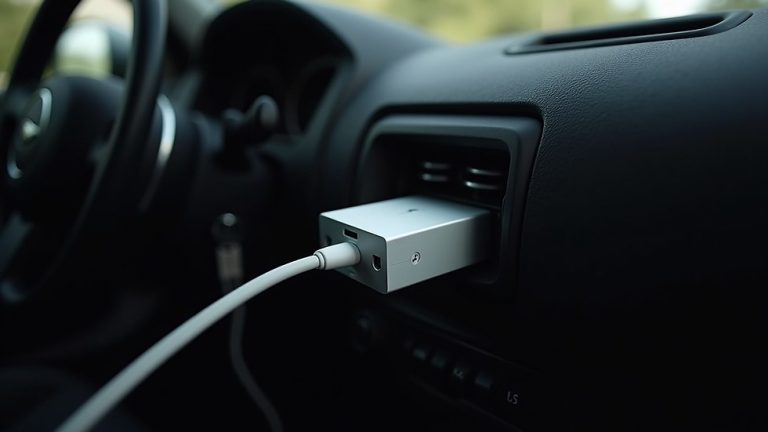
- USB power delivery: Wireless adapters draw power from the USB port. A port that delivers inconsistent voltage, or a port that cuts power during certain vehicle operations, can cause the adapter to reboot and drop CarPlay.
- Cable quality and length: A damaged, loose, or overly long cable can interrupt power even when the port is healthy. Short, quality cables with snug connectors are the most reliable.
- Adapter heat management: Small adapters generate heat, and heat causes instability. Designs with better ventilation or metal housings tend to stay cooler and more consistent on long drives.
- Radio frequency environment: Wireless CarPlay typically uses the 5 GHz Wi-Fi band, but congestion, interference from nearby devices, and even some vehicle electronics can disrupt the signal.
If you use an aftermarket wireless CarPlay adapter, check whether it supports firmware updates before buying. Adapters without update support may never receive fixes for known disconnect bugs, and they are often the first thing to replace.
Power draw is another consideration. An adapter that stays active when the car is off can slowly drain the battery, and a weak battery can cause voltage dips that make CarPlay unstable on the next drive. Our guide to wireless CarPlay adapter battery drain explains how to tell if your adapter is the problem.
Installation, Application, and Everyday Use
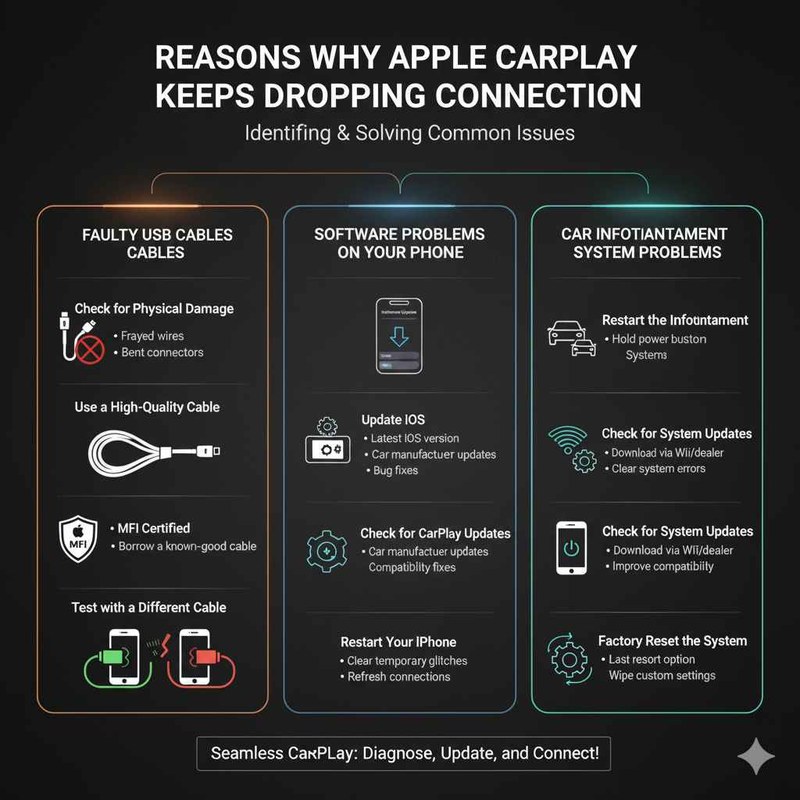
Most disconnect fixes follow a clear order: software first, then pairing, then hardware. Work through these steps before buying anything.
Restart your iPhone and turn the car completely off and on. This clears temporary software glitches on both sides and is one of the most effective free fixes.
On your iPhone, go to Settings > General > CarPlay, select your car, and tap Forget This Car. Then pair again from the car’s screen. This rebuilds the Bluetooth and Wi-Fi pairing data.
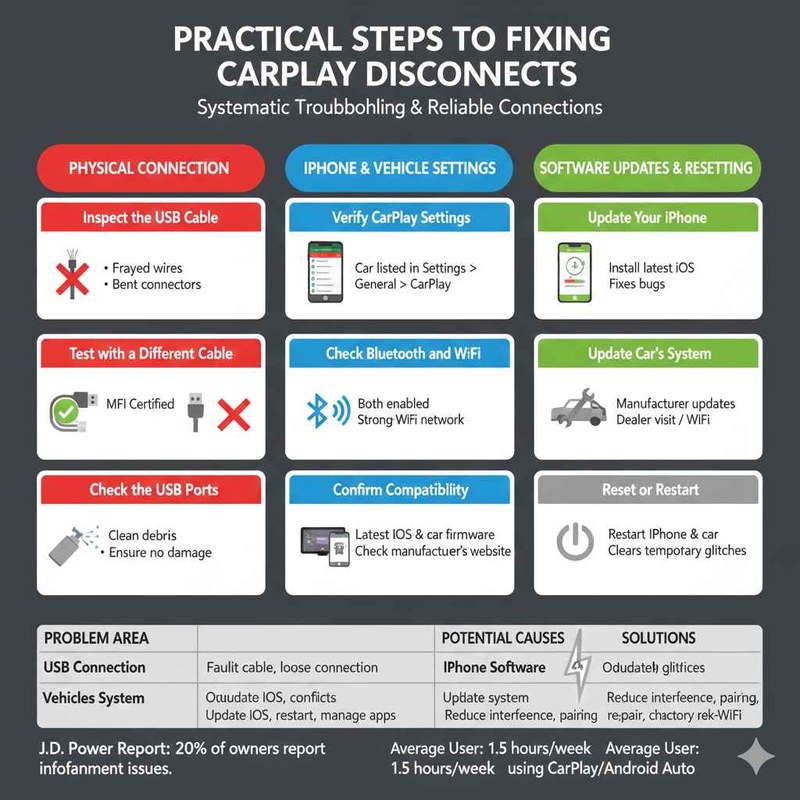
Update iOS, your vehicle’s infotainment software, and your adapter’s firmware. Many disconnect bugs are documented and fixed in updates.
Try a different USB port and a different cable. Confirm the connection is snug, and if the adapter feels hot, move it to a spot with more airflow.
For a more detailed walkthrough, see our guide on how to reset a wireless CarPlay adapter without losing settings.
Disable VPN apps and Low Power Mode temporarily while testing. VPNs reroute network traffic and can confuse CarPlay’s connection, while Low Power Mode can throttle background processes that keep the session alive.
In everyday use, avoid starting CarPlay while your phone is still connecting to a home Wi-Fi network or a public hotspot. Let the phone settle for a few seconds after you start the car, and keep other Bluetooth devices like smartwatches and earbuds from fighting for attention if you notice a pattern.
Cleaning, Care, and Long-Term Maintenance
Wireless CarPlay disconnects are often maintenance problems in disguise. A dirty USB port, a frayed cable, or an adapter buried behind trim can cause intermittent failures that look like software bugs.
- Clean USB ports: Use compressed air or a soft dry brush to remove dust and lint from the port your adapter or cable plugs into. A poor electrical connection is a common cause of random reboots.
- Inspect cables: Replace any cable with bent connectors, exposed wire, or a loose fit. Cables in a car flex with temperature changes and wear faster than indoor cables.
- Update firmware regularly: Check your adapter manufacturer’s app or website every few months. Updates often include stability fixes for specific iPhone iOS versions.
- Manage heat: Park in shade when possible, and avoid tucking the adapter into a closed compartment where heat builds up during summer drives.
Firmware updates matter more than most owners realize. Our guide on how to update a wireless CarPlay adapter walks through the process and explains why it is often the missing step in a disconnect troubleshooting routine.
Important Limitations and Common Mistakes
Some disconnects cannot be fixed from the driver’s seat. Factory infotainment bugs, iPhone software defects, and interference from other vehicles or infrastructure may require a dealer update or a later iOS release. Recognizing these limits prevents you from wasting money on gear that will not help.
Never modify your vehicle’s wiring, antenna, or infotainment module to improve CarPlay reception. Unauthorized electrical changes can void warranties, interfere with safety systems, and create fire or battery risks. If a dealer software update does not fix the issue, consult the vehicle manufacturer.
- Restart the phone and car before buying anything
- Check iOS, car, and adapter updates first
- Test a different USB port and cable
- Keep the adapter in a ventilated spot
- Ignore known vehicle-specific CarPlay bugs
- Use cheap, damaged, or overly long cables
- Place the adapter near metal or inside sealed compartments
- Assume a new adapter will fix a phone-side problem
Another common mistake is blaming the adapter when the phone is the culprit. Background app refreshes, VPN profiles, and even nearly full iPhone storage can destabilize CarPlay. If you are willing to re-enter Wi-Fi passwords afterward, resetting network settings on the iPhone can clear stubborn connection data.
It is also worth reviewing whether your setup is safe in the first place. Our article on whether wireless CarPlay adapters are safe covers heat, power draw, and placement concerns that affect long-term reliability.
Value, Alternatives, and What to Verify
Before spending money, decide whether the problem is the adapter, the car, or the phone. The table below compares your main options.
| Option | Best For | Key Consideration |
|---|---|---|
| Free software fixes | Occasional drops after updates | Start here; costs nothing and resolves many cases |
| New USB cable or port change | Power-related reboots | Verify the cable and port deliver stable power |
| Replacement wireless adapter | Adapters with old firmware or heat issues | Check firmware update support before buying |
| Wired CarPlay | Drivers who need maximum reliability | No wireless convenience, but very stable |
If you decide to replace gear, look for an adapter with a strong reputation for stability, regular firmware updates, and a design that runs cool. Avoid the cheapest no-name options, which often lack update support and have poor heat management. You can explore more in the CarPlay section of Autostin for related guides and comparisons.
Wired CarPlay remains the most reliable fallback. If your disconnects happen during long trips or in specific areas, keeping a quality Lightning or USB-C cable in the car is a simple backup that costs far less than a new adapter.
Final Recommendation
Start with the free fixes: restart, re-pair, update, and test a different power source. If those fail, the most likely culprits are a weak USB power path, an outdated adapter, or a known vehicle bug. Only then consider replacing the adapter or falling back to wired CarPlay.
- Best first step: Restart and re-pair before buying anything
- Main strength of this approach: It is free, fast, and resolves most common causes
- Main limitation: Some vehicle and iPhone bugs require manufacturer updates you cannot control
- Next verification step: Check your car’s infotainment software version and your adapter’s firmware status