How to Update Wireless CarPlay Adapter Firmware in Minutes

Most wireless CarPlay adapters update through their companion smartphone app, though some require a USB cable to a computer. Keep the car powered, verify the adapter’s current version, and avoid unplugging until the progress bar reaches 100%.
If you are ready to learn how to update wireless CarPlay adapter firmware, the short version is that most adapters update through a companion smartphone app, a USB connection to a computer, or automatically in the background while the adapter is powered. The complete process usually takes less than ten minutes, but the exact steps depend on the adapter brand, its model number, and the app it uses.
- Update frequency: Check every few months and after major iOS releases for new adapter firmware.
- Core safety step: Keep the car in accessory or run mode so the adapter never loses power.
- Methods differ: Some adapters update in-app; older models use a USB firmware file on a computer.
- After the update: Confirm the new version in the app and re-pair your iPhone if Bluetooth resets.
- If it fails: Do not retry the same file; verify the model number and follow the manufacturer’s.
Direct Answer: What to Know About how to update wireless CarPlay adapter firmware
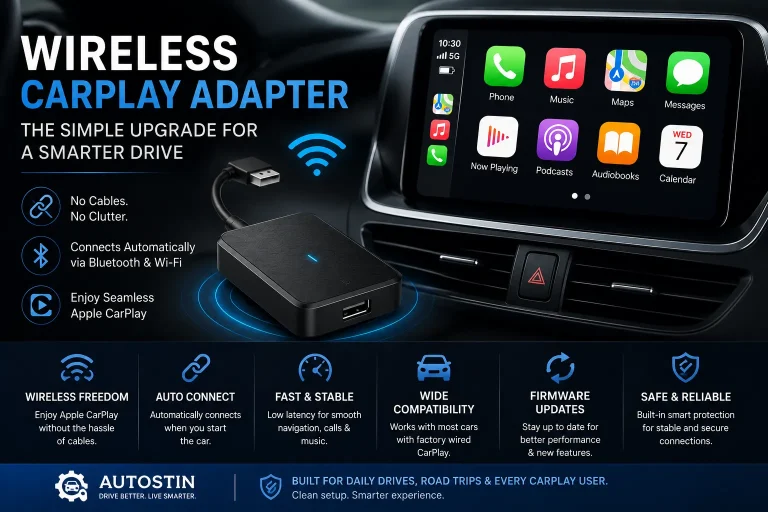
Firmware is the low-level software stored on the adapter’s chip that controls how it talks to your iPhone, your car’s head unit, and the Bluetooth and Wi-Fi radios inside. Updates are released by adapter manufacturers to fix connection drops, improve audio sync, reduce boot time, and add support for newer iPhone or iOS versions.
There are three common update paths:
- In-app update: Most newer adapters check for updates automatically when you open the companion app and connect to the adapter over Bluetooth or Wi-Fi.
- USB update: Some adapters require you to plug them into a computer, download a firmware file, and place it on the adapter’s storage drive before reinstalling it in the car.
- Automatic background update: A few premium models download and install updates in the background while the adapter is powered but idle in the vehicle.
Before you start, write down or screenshot your current firmware version. You can usually find it in the app’s settings or About screen. That gives you a baseline so you can confirm the update actually installed. You should also make sure your iPhone is fully charged or plugged in, because the update process can take several minutes and some apps will warn you if the phone’s battery is low.
Close unnecessary apps on your iPhone before starting a firmware update. Background tasks rarely break an update, but the post-update reboot of the adapter can be smoother when the phone is not juggling a dozen processes at once.
Fit, Compatibility, and Who It Suits
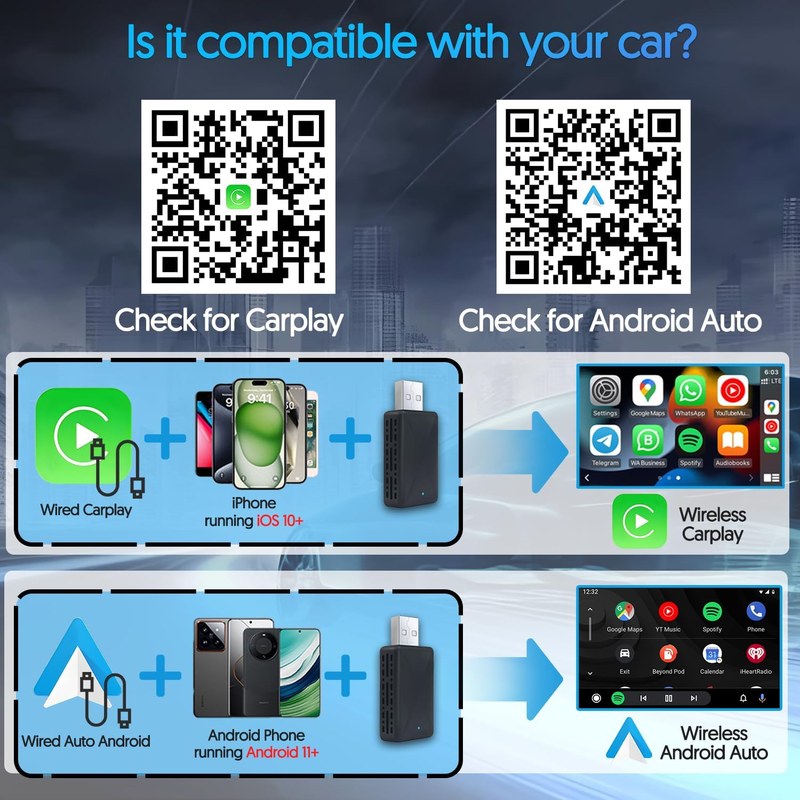
Not every wireless CarPlay adapter supports over-the-air updates. Older budget adapters may ship with firmware that can only be updated through a USB cable and a laptop. Higher-end models typically update through iOS or Android companion apps. If you are not sure which category your adapter falls into, check the documentation that came with it or the manufacturer’s support page.
Compatibility matters on three levels:
- Adapter hardware: A firmware file for one brand will not work on another. Using the wrong file can permanently disable the adapter.
- Vehicle head unit: Your car must support wired CarPlay in the first place, and the adapter firmware must match the communication protocol used by the head unit. A successful update should not change that compatibility, but a failed update could temporarily disable the adapter until it is recovered.
- iPhone and iOS version: Some updates are released specifically to fix problems with a new iOS release. If your iPhone is several versions behind, the new firmware may still install, but the adapter may not support the latest features or connection methods.
Verify the adapter brand, model number, and current firmware version before downloading anything. Confirm that the companion app supports your phone’s operating system version and that the vehicle’s USB port provides stable power during the update.
This guide suits anyone who already owns a wireless CarPlay adapter, whether it is a budget dongle or a premium model. If you are still shopping for your first adapter, it helps to understand how wireless CarPlay adapters work before deciding which one to buy.
Materials, Construction, and Key Features
From a hardware standpoint, a wireless CarPlay adapter is a small plastic housing containing a processor, Wi-Fi and Bluetooth radios, and a USB male connector. The materials that matter most are not the casing but the internal components and antenna quality. A poorly shielded adapter can drop connections in busy urban areas where Wi-Fi interference is common.
Firmware updates matter because they change how the radios and processor behave. A single update can improve:
- Connection handshake speed when you start the car
- Audio synchronization between CarPlay apps and the head unit
- Stability of the Bluetooth link used for the initial handshake
- Compatibility with newer iOS releases from Apple
- Behavior after the adapter powers down with the vehicle
Most adapters do not have visible buttons or screens. The only physical interaction is usually the USB connector and an LED status light that changes color during boot, connection, and firmware update modes. During an update, the LED may blink or shift color, and the app typically shows a progress bar. It is worth knowing what “idle,” “connected,” and “updating” look like on your specific adapter so you do not mistake an active update for a frozen device.
Installation, Application, and Everyday Use
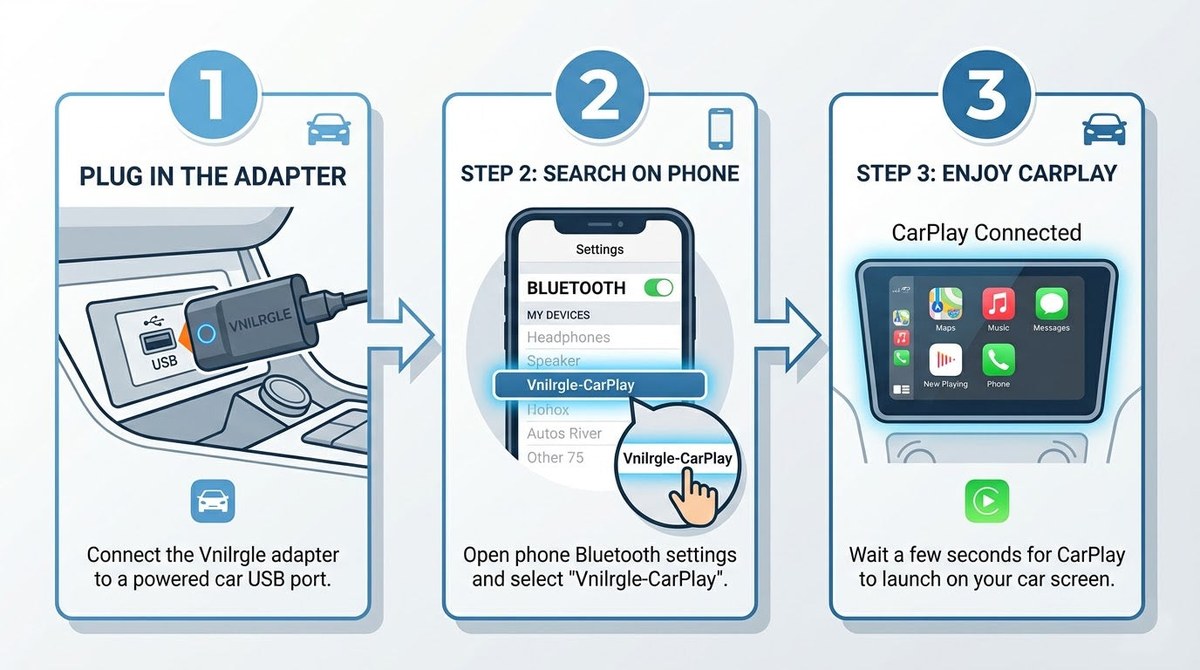
The update procedure varies by adapter, but the general flow is consistent across most app-based models. Here is the typical sequence:
Check the manufacturer’s support page or companion app for the latest firmware version and read the specific instructions for your adapter model. Do not skip this step even if you have updated before.
Plug the adapter into the car’s USB port and let it boot. Have your iPhone nearby with Bluetooth and Wi-Fi enabled, and keep the ignition in the accessory or run position so the USB port stays powered throughout the update.
Open the companion app, connect to the adapter, and start the update. Keep the phone and adapter within a few feet of each other. When the progress bar finishes, the adapter will usually reboot automatically. Reconnect CarPlay and confirm the new version number in the app.
For USB-based adapters, the process is different but straightforward. Plug the adapter into a computer, open the drive that appears, and replace the firmware file with the newly downloaded one. Safely eject the drive, unplug the adapter from the computer, and then plug it into the car’s USB port. The adapter will read the new file on boot and install it automatically.
Once the progress bar reaches 100%, the adapter usually reboots on its own. The LED may flash during the reboot, and the app will show a disconnected state. After the reboot, reconnect your iPhone to CarPlay and open the app again to verify the new firmware version number. Some adapters also re-run a quick Bluetooth pairing step the first time they boot after an update.
After any firmware update, pair your phone again if the adapter prompts you to. Some updates reset the adapter’s Bluetooth pairing memory. If your car has multiple saved phones, you may need to re-add the primary one before CarPlay reconnects.
- Follow the adapter manufacturer’s instructions exactly; do not mix update methods across brands.
- Test the adapter in a parking spot before driving so you can confirm the connection without distractions.
- Keep the adapter’s USB connection clean and avoid putting strain on the port while driving.
On the subject of connection, proper first-time setup often matters as much as the firmware itself. If the adapter fails to connect after an update, review how to connect a wireless CarPlay adapter from the beginning, including forgetting the old Bluetooth pairing and starting fresh.
Cleaning, Care, and Long-Term Maintenance
Firmware updates are only part of the maintenance picture for a wireless CarPlay adapter. The physical device lives in a demanding environment, with cabin temperatures that can climb well above 100 degrees Fahrenheit in summer and drop below freezing in winter.
For the adapter itself, keep the USB connector free of dust, lint, and corrosion. A can of compressed air or a dry cotton swab can clear debris from the USB port. Do not use contact cleaners or sprays while the adapter is plugged in. Check the car’s USB port periodically, too, because a loose port can cause power interruptions during an update and potentially corrupt the firmware.
When the adapter will not be used for long periods, many owners prefer to unplug it and store it in the glove box. If you leave it plugged in, watch for signs of battery drain on the vehicle side, because some adapters draw power even when the car is off. You can learn more about whether wireless CarPlay adapters drain the car battery and whether it is safe to leave them plugged in between drives.
On the software side, set a reminder to check for updates every few months. Manufacturers often release updates alongside iOS major releases in September or October, so those months are a good time to look. The companion app will usually show the current version and a link to release notes. If you use the adapter daily, a single update can fix a nagging connection issue you have been living with for weeks.
Important Limitations and Common Mistakes
The most serious risk in any firmware update is power loss. If the USB port stops supplying power mid-update, the adapter’s firmware can become corrupted, leaving the device unusable. Some adapters can be recovered using a forced reset or a USB-based reinstall, but others cannot. Always keep the car running or in accessory mode during the update, and avoid turning the car off until the app confirms the update is complete.
Do not unplug the adapter, turn off the car, or disconnect your phone during a firmware update. An interrupted update can leave the adapter unusable. If the update fails, do not immediately retry with the same file until you confirm the file matches your adapter model.
Some vehicles time out their USB ports even in accessory mode, especially hybrids and EVs that manage cabin power aggressively. If your adapter’s update consistently stalls halfway, check the vehicle’s power management settings or use the engine-running position instead. A USB power meter can confirm whether the port is delivering stable voltage, though most owners will not need one.
Other common mistakes include:
- Downloading the wrong firmware file. Adapter models within the same brand may have different hardware revisions. Check the model number, not just the brand name.
- Updating through a low-quality USB cable. Some adapters use detachable cables. A worn or non-data cable can interrupt the update or prevent the adapter from mounting its storage drive on a computer.
- Skipping the release notes. If an update removes a feature you rely on, you may want to hold off. Read the notes before installing.
- Ignoring a failed update. If the adapter reports an “update failed” message, do not assume the device is still fine. Verify the current version and plan a recovery reset if needed.
- Verify the current firmware version before and after the update.
- Update in a parked location with the engine running or in accessory mode.
- Check release notes for known issues before installing.
- Unplug the adapter mid-update.
- Use firmware files from unofficial sites or forums.
- Assume a failed update fixed itself without checking the version.
If you run into trouble after an update, the first step is usually a reset. Our guide on how to reset a wireless CarPlay adapter without losing settings walks through the safe reset options before you try anything more drastic.
Value, Alternatives, and What to Verify
Firmware updates are free and can extend the life of an adapter by years. A budget adapter that receives regular updates can outperform a premium adapter that was abandoned by its manufacturer. That makes the update habit one of the highest-value maintenance tasks for CarPlay users, more valuable than cleaning the casing or reseating the USB connector.
If your adapter has not received an update in a long time, check the manufacturer’s support page to see whether the product has been discontinued. Some brands stop updating older models, and in that case, the value calculation changes. You may be better off replacing the adapter instead of waiting for an update that never arrives.
| Update Method | Best For | Key Consideration |
|---|---|---|
| In-app update | Most modern adapters | Requires a stable Bluetooth or Wi-Fi link between phone and adapter |
| USB update | Older or budget adapters without an app | Requires a Windows PC or Mac with a data-capable USB cable |
| Automatic update | Premium adapters with background updates | Needs the adapter to stay powered long enough to finish |
- Confirm the adapter model number and current firmware version.
- Check the companion app or support page for the latest firmware release notes.
- Verify the car’s USB port provides stable power, and keep the ignition in accessory or run mode.
- Review whether the update resets Bluetooth pairings or CarPlay settings.
- Note the recovery procedure in case the update interrupts.
Alternatives to a manual firmware update include automatic updates (if your adapter supports them), a factory reset followed by a fresh install, or replacing the adapter entirely. If you are comparing options, it is also worth understanding whether wireless CarPlay adapters drain the car battery and whether leaving one plugged in between drives is a concern.
Final Recommendation
Keeping your wireless CarPlay adapter firmware current is a simple, free maintenance routine that can prevent connection drops, speed up boot times, and keep the adapter working with the latest iPhone software. The process rarely takes more than a few minutes, and the only real risk is power loss during the update window.
- Best use case: Updating any wireless CarPlay adapter that uses a companion app or USB-based firmware install.
- Main strength: Firmware updates resolve real connection and compatibility issues without any cost.
- Main limitation: A power interruption can leave the adapter unusable until a recovery reset is performed.
- Next verification step: Check the manufacturer’s support page for firmware release notes and confirm your adapter model and current version before updating.