
How to Update a Wireless CarPlay Adapter Firmware Safely

To update a wireless CarPlay adapter, connect your phone to the adapter’s Wi-Fi network, open the adapter’s update page or app, check for new firmware, and install it while the car is parked. Never unplug the adapter, turn off the car, or close the update page during the firmware update.
Updating a wireless CarPlay adapter can fix connection drops, slow startup, audio delay, phone pairing issues, and vehicle compatibility bugs. The safest method is to follow the brand’s update guide, use a steady power source, and only update when the adapter is working enough to access its settings page.
I’m Brandon Walker, and I like car tech that makes driving easier, not harder. Wireless CarPlay adapters are great when they work well. But when they lag, freeze, or stop connecting, a firmware update is often the first thing I check.
The update process can feel confusing because every adapter brand is a little different. Some use a mobile app. Some use a browser page. Some ask you to scan a QR code. The good news is that the basic idea is almost always the same.
What Does It Mean to Update a Wireless CarPlay Adapter?
Updating a wireless CarPlay adapter means installing new firmware on the adapter. Firmware is the small built-in software that controls how the adapter connects to your car and iPhone.
A firmware update can improve startup speed, connection stability, audio sync, vehicle fitment, and phone pairing. It can also fix bugs after an iPhone iOS update.
Think of it like updating a dash cam, smart TV, or home router. The hardware stays the same, but the software inside gets improved.
If you are new to car electronics, you may also like our car electronics section. Wireless CarPlay adapters fit right into that group because they mix phone tech, vehicle screens, USB ports, and infotainment software.
When Should You Update a Wireless CarPlay Adapter?
You do not need to update your adapter every week. If it works perfectly, I usually leave it alone unless the brand recommends an important update.
But if your adapter starts acting strange, an update may help. This is common after an iPhone iOS update, a car infotainment update, or a reset of the adapter.
| Problem | Possible Reason | Can an Update Help? |
|---|---|---|
| Adapter takes too long to connect | Old firmware or slow boot process | Yes, sometimes |
| CarPlay disconnects randomly | Wireless stability bug | Yes, often |
| Audio has delay | Sync or data handling issue | Sometimes |
| Phone will not pair | Bluetooth or Wi-Fi handshake issue | Yes, sometimes |
| Adapter does not power on | USB power or hardware failure | Usually no |
I recommend updating a wireless CarPlay adapter only when you have a clear reason, such as connection drops, lag, pairing trouble, or a brand notice. Do not update in a hurry before a road trip. Test the adapter at home first.
Before You Update: Important Checks
Before you touch the firmware, check the simple stuff first. Many CarPlay problems come from the USB port, phone settings, or old Bluetooth pairings.
Use the same USB port that works with wired CarPlay. Make sure Bluetooth and Wi-Fi are on. Restart your iPhone. Then unplug the adapter and plug it back in.
- Park the car in a safe place.
- Keep the engine on or use accessory mode only if the brand allows it.
- Make sure your iPhone has enough battery.
- Confirm the adapter is the correct model.
- Read the brand’s update guide if available.
- Write down the adapter Wi-Fi name and password.
- Do not update during a storm, long drive, or weak power situation.
If wired CarPlay does not work with a normal cable, fix that first. A wireless CarPlay adapter depends on the car’s wired CarPlay system. Firmware will not fix a dead USB port or a car that does not support CarPlay.
What You’ll Need to Update a Wireless CarPlay Adapter
You do not need many tools. Most updates use your iPhone and the adapter’s own Wi-Fi page. Some brands may need a computer, USB drive, or app, but that is less common.
How to Update Wireless CarPlay Adapter Step by Step
The exact screen names may change by adapter brand. Still, these steps cover the normal update process used by many wireless CarPlay adapters.
Do the update in your driveway, garage, or a safe parking spot. Do not update while driving. Keep the car powered so the USB port does not shut off.
Connect the wireless CarPlay adapter to the USB port that normally runs wired Apple CarPlay. Wait until the adapter powers on.
Open Wi-Fi settings on your iPhone. Find the adapter’s Wi-Fi name. Connect to it using the password from the manual, sticker, app, or setup screen.
Some adapters use a browser address. Others use a QR code or mobile app. Open the update page and wait for the settings panel to load.
Look for buttons like Check Update, Firmware Update, Online Update, Software Update, or Version. Tap it once and wait.
If a new firmware version appears, start the update. Keep the phone near the adapter. Do not unplug anything or turn off the car.
After the update finishes, restart the adapter and your iPhone. Then test CarPlay, music, maps, calls, and steering wheel controls.
Never unplug a wireless CarPlay adapter during a firmware update. Cutting power during the update can corrupt the adapter software and may make the device stop working.
How the Update Process Usually Works
Most adapters create their own local Wi-Fi network. Your phone connects to that network for setup and updates. This is different from your home Wi-Fi.
The update page talks directly to the adapter. Some adapters also use your phone’s internet connection to download firmware from the brand’s server.
Bluetooth is usually used to start the CarPlay connection, but firmware updates often happen through the adapter’s Wi-Fi settings page. Keep both Wi-Fi and Bluetooth turned on unless the update guide says otherwise.
Common Update Methods by Adapter Type
Wireless CarPlay adapters do not all update the same way. The most common method is a phone browser page, but some adapters use a brand app or USB update file.
| Update Method | How It Works | Best For |
|---|---|---|
| Phone browser page | Connect to adapter Wi-Fi, then open a local settings page | Most common adapters |
| Brand mobile app | Use the app to check and install firmware | Adapters with app support |
| QR code update | Scan a code shown on the car screen or in the manual | Beginner-friendly setup |
| USB drive update | Download firmware to a USB drive, then update the adapter | Some advanced models |
| Computer update tool | Connect adapter to a computer and run update software | Less common adapter brands |
Why Updating a Wireless CarPlay Adapter Matters
Car tech changes fast. Your iPhone gets iOS updates. Cars get infotainment updates. Apps like maps and music also change. Your adapter has to stay in the middle of all that.
If the adapter firmware is old, it may not handle new iPhone software well. That can lead to lag, freezing, black screens, or pairing problems.
Apple explains CarPlay as a way to use iPhone features through the car display. You can learn more from Apple’s CarPlay overview. For broader car technology coverage, I also like checking Edmunds car technology guides.
Good firmware helps the adapter speak better with both sides: your iPhone and your car screen.
I have seen a wireless CarPlay adapter go from annoying to usable after one update. Before the update, it took almost a minute to connect. After the update, it connected faster and stopped dropping audio on short drives.
Pros and Cons of Updating Your Adapter
- Can fix random disconnects
- May improve startup speed
- Can reduce audio delay
- May improve iPhone compatibility
- Can add better support for some vehicles
- Bad updates can create new bugs
- Power loss during update can damage firmware
- Some update pages are confusing
- Not every problem is software-related
- Older adapters may not receive updates anymore
Wireless CarPlay Adapter Update Spec Sheet
Here is a simple spec-style view of what matters during an update. This is not for one single brand. It is a general guide for common wireless CarPlay adapters.
Compatibility Notes Before Updating
Not every update is right for every adapter. Firmware is usually model-specific. Do not download firmware from a random website or from a different product page.
Using the wrong firmware can break the adapter. Always match the firmware to your exact adapter model, hardware version, and brand instructions.
Wireless CarPlay adapter firmware is not universal. A firmware file made for one adapter model may not work on another model, even if the adapters look almost the same.
How Much Does Updating Cost?
Most firmware updates are free. If a brand charges extra just to fix basic bugs, I would be careful. A normal update should not require a subscription.
The only cost may come from buying a better USB cable, replacing a weak adapter, or using a paid repair service if something goes wrong.
If you are building a cleaner cabin setup, you may also want to explore our interior gear picks. A wireless adapter works best when the console is neat and the phone has a safe place to sit.
Install Tips After the Update
Once the update finishes, do not judge it in the first ten seconds. Give the adapter a clean restart and test it like you would on a real drive.
- Restart your iPhone after the update.
- Forget the old Bluetooth pairing if the adapter acts strange.
- Reconnect the adapter like it is new.
- Test maps, music, phone calls, and Siri.
- Drive around the block before using it on a long trip.
- Keep the adapter away from extreme heat if possible.
Do’s and Don’ts for Wireless CarPlay Adapter Updates
- Do update while parked.
- Do use the official brand guide.
- Do keep the car powered during the update.
- Do save current settings if the app allows it.
- Do test the adapter after the update.
- Don’t unplug the adapter mid-update.
- Don’t use firmware from another model.
- Don’t update right before a long road trip.
- Don’t close the update page while firmware is installing.
- Don’t try to update while driving.
What If the Update Fails?
Do not panic right away. Some adapters reboot several times during an update. Give it a few minutes before touching anything.
If the adapter stops working after the update, try a basic reset. Unplug it, wait one minute, plug it back in, and restart your iPhone. Then check if the adapter Wi-Fi appears again.
| Issue After Update | Likely Cause | What to Try |
|---|---|---|
| Adapter Wi-Fi disappeared | Adapter still rebooting or failed update | Wait, then power cycle the adapter |
| CarPlay will not launch | Old pairing conflict | Forget Bluetooth and Wi-Fi, then pair again |
| Update page will not open | Phone not connected to adapter Wi-Fi | Reconnect to the adapter network |
| Audio delay is worse | Firmware bug or wrong setting | Reset settings or contact the brand |
| Adapter is dead | Power loss or bad firmware | Contact seller support or replace it |
If the update fails, avoid repeated random reset attempts. Check the manual first. Some adapters have a recovery mode, but the steps are different by brand.
Should You Update from iPhone or Android?
Most wireless CarPlay users update from an iPhone. That makes sense because the adapter is being used for Apple CarPlay.
Some 2-in-1 adapters support both Apple CarPlay and Android Auto. In that case, the brand may allow update access from either iPhone or Android. Follow the manual for your exact adapter.
If your adapter supports Android Auto too, you may also want to browse our car tech guide for more electronics topics like phone pairing, screens, and in-car connectivity.
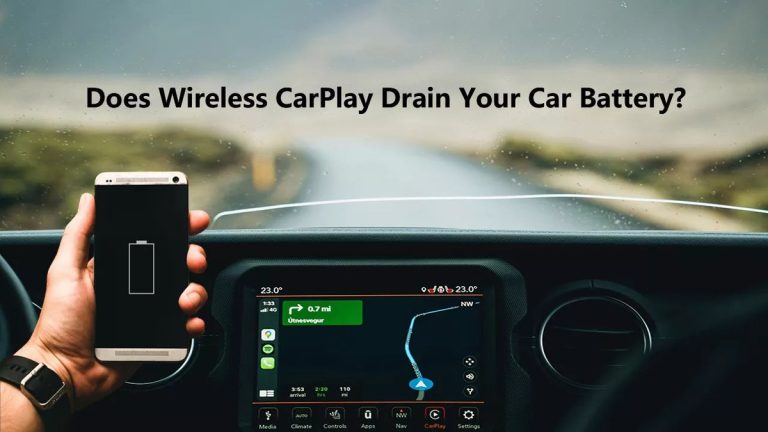
Does Updating Fix Battery Drain?
Sometimes. If your adapter stays active after the car turns off, a firmware update may help. But battery drain can also come from the vehicle USB port staying powered.
Some vehicles keep USB ports on for a short time after shutdown. Others may keep power longer. If the adapter light stays on all night, unplug it or check your owner’s manual.
The NHTSA vehicle safety resources are also useful for learning about safe vehicle use and common driving safety topics.
Many wireless CarPlay adapters use Wi-Fi for the main CarPlay connection. That is why your iPhone may use more battery than it does with wired CarPlay.
How to Know If the Update Worked
After the update, test the adapter like a normal driver. Do not only check the home screen. Open maps. Play music. Make a short call. Ask Siri for directions.
You should look for faster startup, fewer disconnects, smoother audio, and better automatic pairing.
| Test | What Good Looks Like | Warning Sign |
|---|---|---|
| Startup | CarPlay opens without extra steps | Adapter keeps looping or freezing |
| Music | Audio plays smoothly | Skipping, lag, or dropouts |
| Navigation | Map moves normally | Screen delay or black screen |
| Calls | Voice sounds clear | Echo or delayed speech |
| Auto-connect | Phone reconnects after restart | You must pair again every time |
What If There Is No Firmware Update Available?
If no update is available, your adapter may already be current. That is fine. Not every issue needs firmware.
Try deleting old Bluetooth pairings, restarting your iPhone, testing another USB cable, or resetting the adapter. Also check your car’s infotainment software if your vehicle brand offers updates.
For general car gear help, Autostin covers simple tools, tech, and accessories for daily drivers.
- Updating a wireless CarPlay adapter means installing new firmware.
- Most updates happen through the adapter Wi-Fi page or brand app.
- Always update while parked with steady power.
- Use only firmware made for your exact adapter model.
- Test CarPlay fully after the update finishes.
A wireless CarPlay adapter update is worth doing when you have connection problems, lag, pairing bugs, or brand-recommended firmware. Take your time, follow the official steps, and never interrupt the update while it is installing.
FAQ About Updating a Wireless CarPlay Adapter
Connect your phone to the adapter’s Wi-Fi, open the update page or app, check for firmware, and install it while the car is parked.
Yes, update it if you have disconnects, lag, pairing issues, or the brand recommends a firmware update.
Sometimes. A firmware update can fix wireless stability bugs, but it will not fix a bad USB port or unsupported vehicle.
Many updates take about 5 to 15 minutes, but the time can vary by brand, model, and internet connection.
No. Always update while parked. Updating while driving is unsafe and may interrupt the firmware process.
Unplugging during an update can corrupt the firmware and may make the adapter stop working.
You may not be connected to the adapter’s Wi-Fi network. Reconnect to the adapter Wi-Fi and try the update page again.
Conclusion: The Safe Way to Update Your Wireless CarPlay Adapter
Learning how to update wireless CarPlay adapter firmware is useful if you rely on CarPlay every day. A good update can make the adapter faster, smoother, and more stable.
My advice is simple. Update only when needed, use the official method, keep the car powered, and do the whole process while parked. After the update, test maps, music, calls, Siri, and auto-connect before you trust it on a long drive.
If your adapter still acts up after the update, the issue may be compatibility, weak USB power, an old infotainment system, or the adapter hardware itself. In that case, it may be smarter to replace the adapter with a better-supported model.
3 Comments